:::: MENU ::::

Best Free Photo and Image Editor

  • GIMPHOTO is FREE OPEN SOURCE

  • GIMPHOTO is STABLE and SOLID

  • GIMPHOTO is PHOTO EDITOR

 
Showing posts with label Tutorial. Show all posts
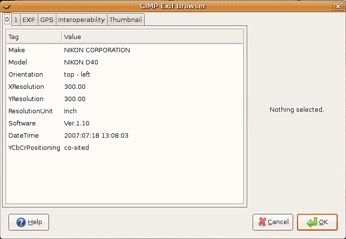
exif-browser

One of Gimphoto user, Pam, has difficulty to preserve exif data using Gimphoto.


EXIF is metadata tags that embedded on photo that taken by digital cameras, it consist of:

  • Date and time information. Digital cameras will record the current date and time and save this in the metadata.

  • Camera settings. This includes static information such as the camera model and make, and information that varies with each image such as orientation, aperture, shutter speed, focal length, metering mode, and ISO speed information.

  • A thumbnail for previewing the picture on the camera’s LCD screen, in file managers, or in photo manipulation software.

  • Descriptions and copyright information.

Actually i didn’t use exif data a lot, sometime i just check the photo’s exif data only to knew about what setting is used to take that photo. Thus i only need photo exif data from original file from camera not from edited photo because that will ruin the original shot results, even if its only scale or crop operation to that photo. Every digital manipulation to the photo will change the quality of photo, for example scale the photo will effect on photo sharpness and crop the photo will make we can’t judge the lens quality anymore from the cropped photo, but that just me :)


GIMP or Gimphoto is always preserve exif data if we use JPG or XCF format.


For other format like TIFF, Targa, GIF, etc there is NO exif data will saved using that format, so be careful if we plan to convert your JPG or XCF format to other file format, maybe better if we backup exif data first before it loss.


This is the workflow if you want to preserve your EXIF data using GIMP or Gimphoto.

  1. Directly from camera or flash, copy JPG that have exif data to your computer folder.

  2. Be careful if you using photo viewer for rotating image, sometimes it delete the exif data.

  3. Edit that photo JPG using Gimphoto (do color correct, sharpening, scaling, add layer, etc)

  4. Save the photo as XCF, this step automatically preserve photo exif data and all layers settings.

  5. Save as the final result as JPG (this step will merge all layers) and still preserve its exif data.

  6. When saving JPG, click Advanced Options > check Save EXIF options then click OK.

  7. Or Export to other file format that will delete exif data but we still have XCF with exif data.

For better management tool with function for backup and restore your photo exif data, you can try to use exiftool, get it from: http://www.sno.phy.queensu.ca/~phil/exiftool/


For viewing exif data using GIMP or Gimphoto, we need EXIF Viewer plugins that we can get it from: GIMP Plugins Repository
EXIF Viewer plugin will be included in the next version of Gimphoto.


For further discussion about it, read Flicker user group talk about GIMP exif data.

using Gimphoto 1.4.3 and Gimpad 1.1 (also useful for Gimphoto for Linux)


Gimphoto has many noise reduction function, that can be accessed using special menu for photograhy functions, from Image Menu > Photo > Noise
- Dcam Noise
- Film Grain Remover
- Greycstoration
- Median

After try to reduce the noise from White Tiger photo using Dcam Noise, then for this tutorial i will use Greycstoration.

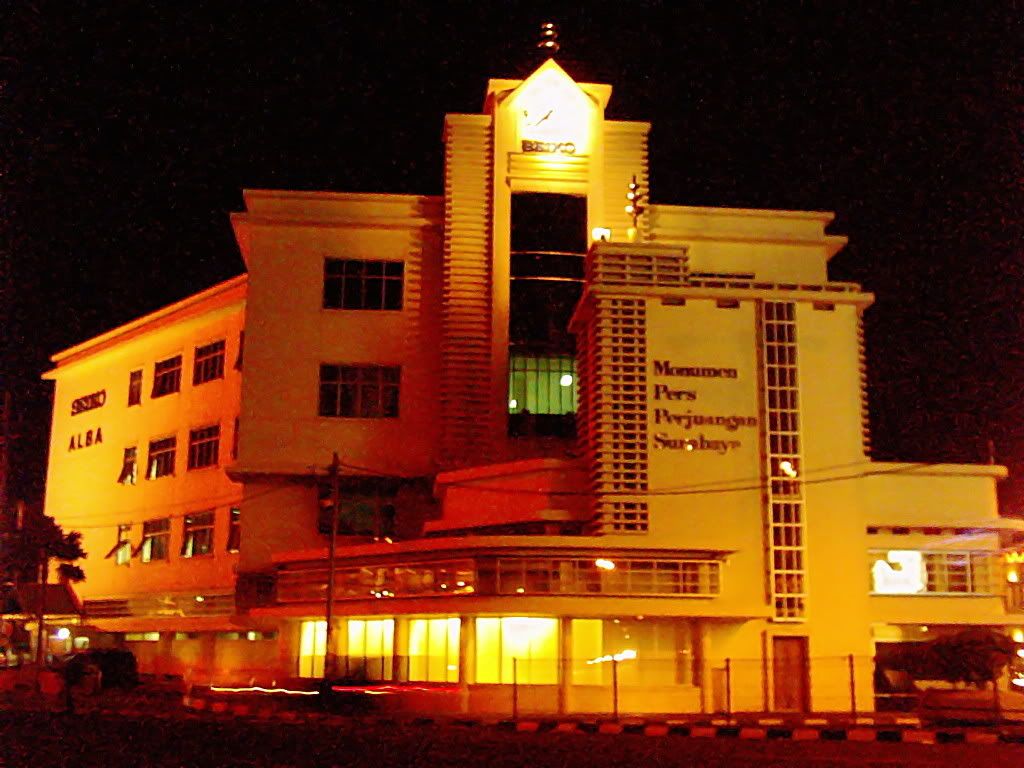
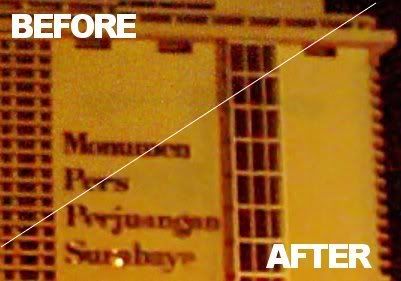
I have a photo about historical building at my town that i shot at night and from far in the middle of busy road then i can't use the flash light. Because the lack of light and using high ISO then the photo result is filled with very bad noise.

If you want to follow this tutorial then download the larger image size by clicking image below:


Historical Building at my home town, Surabaya.
(noise maybe more visible at larger size, click image to download it)


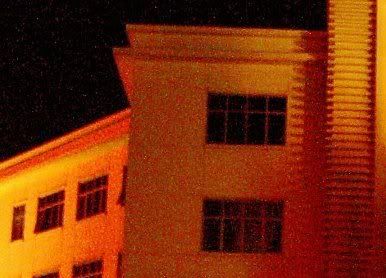
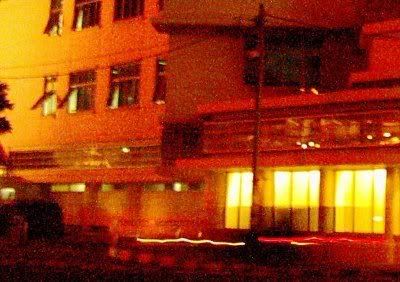
This is many different area in the image with worst noise displayed at 100% view level.


Look at this very bad noise all over the photo


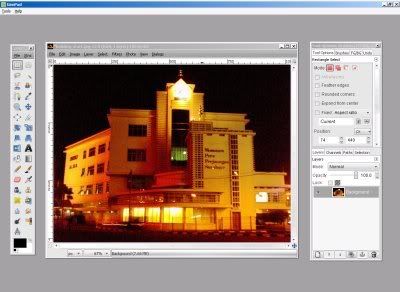
1. Now run Gimphoto and open the photo.


Gimphoto with Gimpad showing historical building photo.


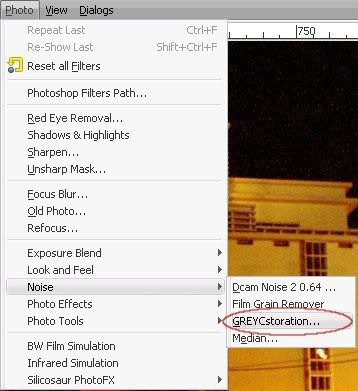
2. Klik Image Menu > Photo > Noise > Greycstoration


Greycstoration menu location.


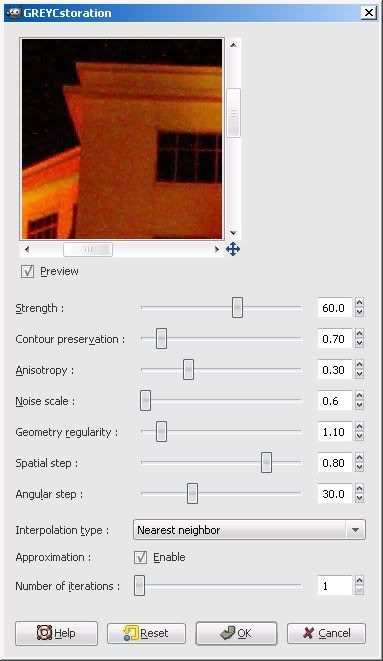
3. Greycstoration dialog box will be open with default parameters


Greycstoration with default values.


Usually Greycstoration default parameters doing just great, parameters that mostly tweaked to improve the noise reduction process is:
Strength, Noise Scale, Interpolation Step and Iteration.

This is simple explanation about each parameters as far as i can understand it:

Strengthhow powerful the noise reduction effect to image, too strong will reduce image detail.
Contour Preservationhow strong greyc maintain image contour, lower is blury and higher is noisy.
Anisotropyhow greyc performed the smoothing orientation, higher value will cause curly patterns.
Noise scalehow strong greyc try to eliminate noise, higher value will give more clean result but more blury image, so balance it between image noise level with image detail level.
Geometry regularityhow strong greyc try to maintain image geometry, higher value will cause curly patterns and slightly blur.
Spatial stepi how no idea what is this for but higher or lower give small effect to image, just use default value :)
Angular stepi how no idea what is this for but higher or lower give small effect to image, smaller value will result much more longer rendering time, just use default value :)
Interpolation typethis value is to define what algorithm that greyc use to define what color to replace the noise, using nearest neighbor: fair quality and fastest, linear: good quality and fast, or runge-kutta: best quality and slow.
Approximationmark the check box to speed-up the rendering with acceptable result, but for better result un-mark it but with longer rendering time.
Number of iterationshow many time greyc will repeate the noise reduction process so this will need longer rendering time, usually between 1 - 5 times is enough, more higher value will produce "plastic effect"


4. I will use Greycstoration default values and only change the Noise Scale value to 1.0 for stronger noise reduction effect to the image.


Greycstoration Noise Scale set to 1.0.


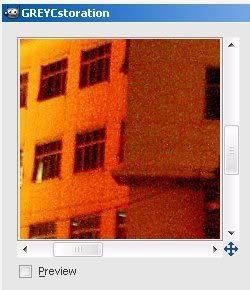
5. Put mouse cursor to Greycstoration Preview Area, Click-Drag mouse to the image area with worst noise.


Check image area first without preview.


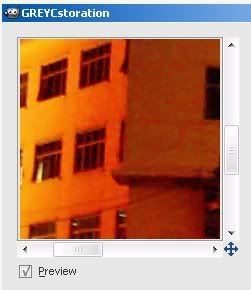
6. Click [ v ] Preview checkbox to disable and enable Preview, compare the result between before and after noise reduction process.


Later, enable preview to compare the results.


7. Repeat step 5 and 6 for all image area with worst noise or area that need to preserve the image detail, compare the image quality between before and after noise reduction process, search for best balance between image detail and image noise.

8. If you satisfied with the result then Click OK and Greycstoration will process the image.

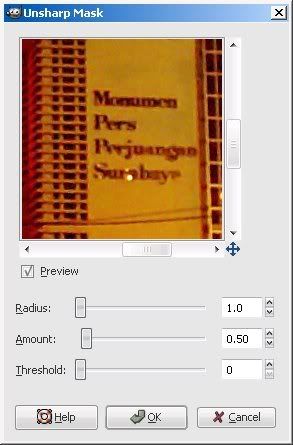
9. The result will be a little blur then do Sharpen or Unsharp Mask to sharpening the image, i use Unsharp Mask with this settings:


Improve image detail with Unsharp Mask.


10. This is my result, click the image to download the larger version of the image.


Click the image to download the final results.


From the result we can see that the Greycstoration produce slightly better image than Dcam Noise but with much longer processing time. But overall Dcam Noise and Greycstoration results as free noise reduction can compete with commercial noise reduction program such as: Neat Image, Noiseware or Noise Ninja.
using Gimphoto 1.4.3 and Gimpad 1.1 (also useful for Gimphoto for Linux)

Dcam Noise GIMP free noise reduction
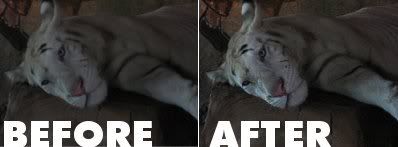
White Tiger photo before and after using Dcam Noise

The BIG problem for photographer is when in the situation that must shoot photo as fast as possible, or when in the situation that there is not enough light or in other condition when they can't takes picture as good as they want.

Photos that shot under bad light condition or shot using high ISO is suffer from noise that spread all over the photo. If we still want to be able to use the photo then we must reduce the noise so we can have clearer photo with lesser noise.

Gimphoto provide many Image Noise Reduction plugin that available under special menu Photo > Noise, such as:

  • Dcam Noise
  • Film Grain Remover
  • GREYCstoration
  • Median

For this tutorial, we will use Dcam Noise.

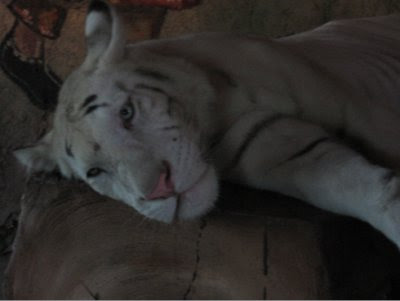
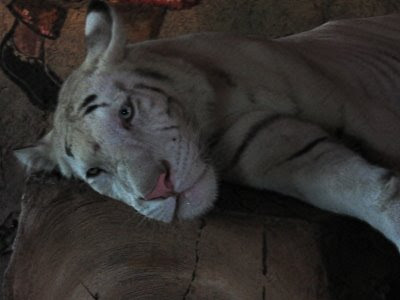
First we need bad noisy photo that we will fix using Dcam Noise, i will use this photo that i taken when i visit Taman Safari, Bali. It is a photo of White Tiger, that tiger is placed in a building that we can go inside and look at it, but the tiger is not in the cage, so we can look at it very closely, but don't worry the tiger is chained and an officer that take care the tiger. The room is have a dim light and there is also sunlight that came through window, but overall the room lighting is bad.

I shot the tiger using only a digital pocket camera Canon A series, the camera zoom is not so far then i must closer to the tiger, so imagine this...in front of you there is really BIG White Tiger without cage at all just only chained in their legs that not really visible to us...and we must move closer to get better photo...oohhh... (>.<) i'm sure mostly is will get our heart pounding very fast...and that will make our camera is shaking...and that is what happened to me...my picture is full with noise because of bad lighting and also got little blur because my hand is shaking when take picture.

Beside photo with bad quality that we must fix, there is also a tiger's fur details that we must maintain when we remove the noise and that will make our tasks more difficult.

White Tiger Photo at Bali
White Tiger at Taman Safari, Bali.


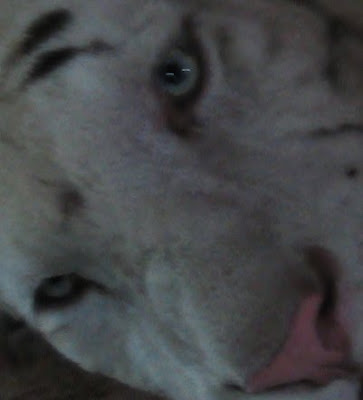
White Tiger Photo with Noise
Blur photo with noise all over it.


Tips before we begin, don't edit over original file but copy it to make a backup.

1. Download original white tiger photo from link below:


(click thumbnail to download)


2. Now open the photo using GimPhoto.

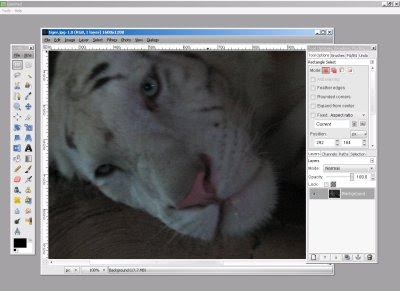
White Tiger in GimPhoto


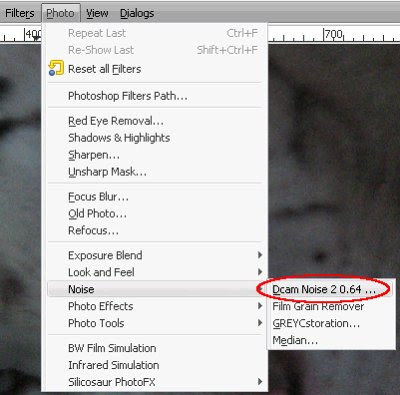
3. Open Menu: Photo > Noise > Dcam Noise.

Image Noise Reduction with Dcam Noise
Dcam Noise Menu Location.


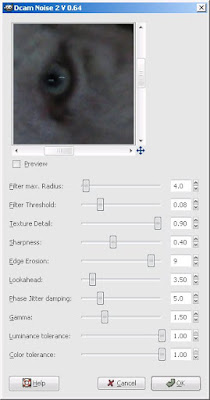
4. Dcam Noise dialog will be open.

Dcam Noise Dialog
Dcam Noise Dialog


5. Check the preview so we can check noise reduction done by Dcam Noise real-time. And this is a little tips when we doing noise reduction:
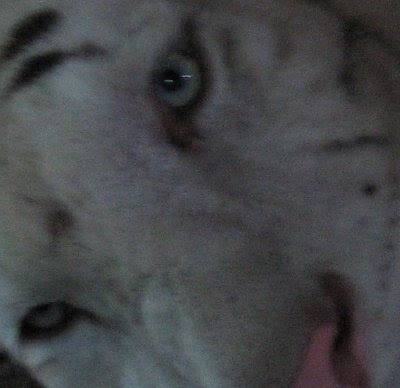
  • pay very close attention to the photo area that have many detail on it, in our case is at the area, such as: tiger's eye and fur.
  • always compare before noise reduction with after noise reduction with clicking on [ v ] Preview, compare the noise, the detail, the texture color and the roughness.
  • everytime we tweak the Dcam Noise parameter with new value, check again the photo detail area and also compare again with original photo.


Dcam Noise Preview
Use Preview to compare the result.


6. DCam Noise have many parameters to tweak, but don't be afraid, once we know about it then the later is piece a cake :) i will explain it as simple as possible and i will show the most important parameters so we can get great result with lesser parameters tweak (with value that i use to fix this photo).

  • Filter max. Radius: define how far the noise reduction effect, bigger is smoother (4.0)
  • Filter Threshold: define how far filter affect neighbor area, beware even with small value change, this will give big effect, bigger is smoother (0.08)
  • Texture Detail: this is very important, define how much texture detail is preserved, bigger is better (0.90)
  • Sharpness: this is very important, define how much sharpness is preserved (this value must be adjust for each image, because different image have different sharpness), bigger is sharper (0.40)
  • Edge Erosion: this is very important, define how edge finess (this depend on the pattern of texture from fabric, fur, skin, etc), bigger will give more detail edge ( 9 ).
  • Look ahead: this is very important, define to get better texture roughness, bigger will give better texture roughness (3.5)

i don't tweak much of this parameters:
Phase Jitter Dumping: ( 5 )
Gamma: (1.5)
Luminance Tolerance: (1.00)
Color Tolerance: (1.00)

7. And we got this result, compare with original photo, not bad huh? :)

White Tiger Image Noise Cleaned
Photo after Image Noise Reduction with Dcam Noise


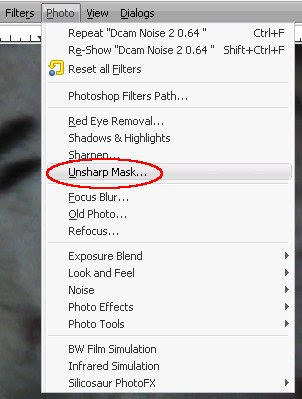
8. After noise reduction, then we sharpen the photo to bring back focus using Unsharp Mask. Go to Menu > Photo > Unsharp Mask.

Sharpen with Unsharp Mask
Unsharp Mask Menu Location.


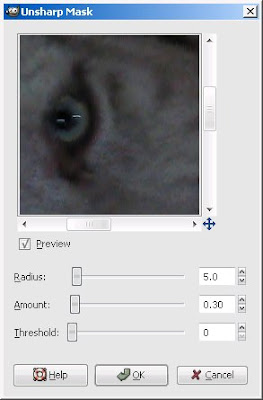
9. Set Unsharp Mask dialog value like in the picture and klik OK.

Unsharp Mask Dialog
Unsharp Mask Dialog.


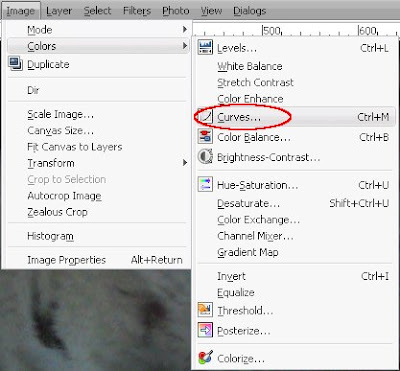
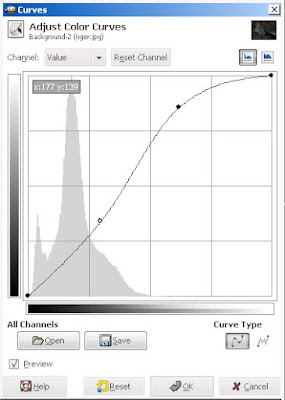
10. After sharpen the photo, then we tweak the overall photo look using Curves. Go to Menu > Edit > Colors > Curves..., make S curve like in the picture and then klik OK.

Menu Curve Location
Menu Curves Location.


Curves S Shape
Create Curves like S shape.


11. Compare this before and after image, amazing huh? (^__~)=b

White Tiger Photo at Bali
White Tiger at Taman Safari, Bali.


Photo after Image Noise Reduction
Final Result from Noise Reduction, Unsharp Mask and Curves.


still don't believe the result? then get the original size final photo below.


(click thumbnail to download)


P.S: With this tutorial we can see that actually GIMP plugins is powerful, the result can match with commercial product. But what make the differences? The difference is GIMP plugins is harder to use because we must remember and understand all parameters that listed with technical name, and they didn't provide preset or load and save preset that will much improve user usability and easier to use, that available in commercial product such as Neat Image or Noise Ninja.

Don't forget GIMP users mainly is an artist or a photographer that works on the artistic side and not on the technical side nor have graphics programming background. I hope this will put into consideration by GIMP plugin developers to improve GIMP usability.
Just Taste ItDownload Now