:::: MENU ::::

Best Free Photo and Image Editor

  • GIMPHOTO is FREE OPEN SOURCE

  • GIMPHOTO is STABLE and SOLID

  • GIMPHOTO is PHOTO EDITOR

 
Showing posts with label Ubuntu. Show all posts

If you already make an applications menu for Gimphoto then maybe you also want to make a desktop shortcuts for Gimphoto ala Windows then it is easy to be done using Ubuntu, just follow the steps below:


1. Browse applications menu for Gimphoto, Applications > Graphics > Gimphoto 1.4.3 when cursor mouse highlight the Gimphoto 1.4.3 text menu then do RIGHT-Click. After that will appear a pop-up menu with options to Add This Launcher to Desktop.
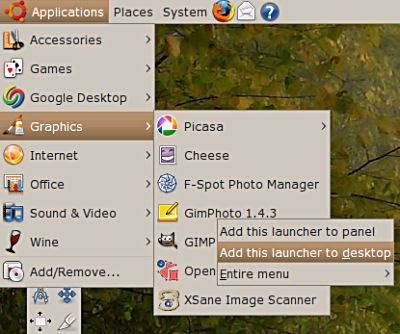


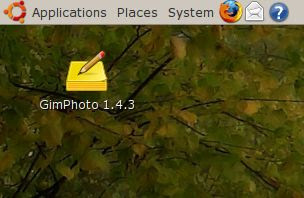
2. After select "Add This Launcher to Desktop" then a desktop shortcut for Gimphoto will appear on the desktop.
After installing Gimphoto for Linux, maybe you realize that Gimphoto program installer not automatically creating program menu for Gimphoto. Actually Gimphoto program installer is creating menu but the menu is only available when we login as root. This happen because we must installing Gimphoto as root to be able to install it at /usr/local/gimphoto and appearently Installjammer doesn’t support to create program menu for all users, but only for active user.


So Gimphoto program menu should be created manually and for this example, i will use Ubuntu 8.04 but this steps should be same for all GNOME based Linux distro.


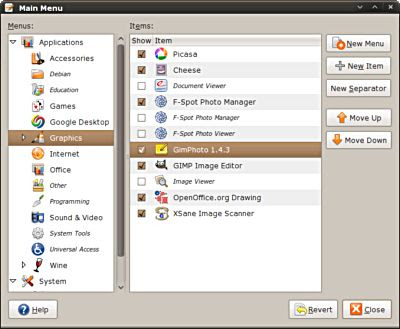
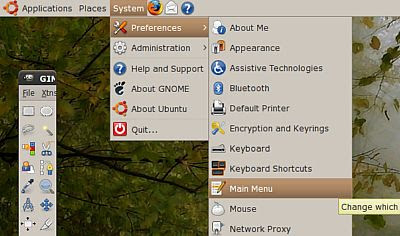
1. Click menu > System > Preferences > Main Menu


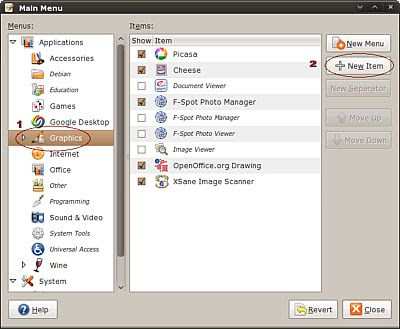
2. Click sub-menu where Gimphoto program menu will be located [ Graphics ] and then Click [ + New Item ] to create new menu.


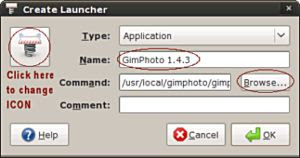
3. Create Launcher dialog will appear, fill Name: Gimphoto 1.4.3 and then Click [ Browse... ] button.


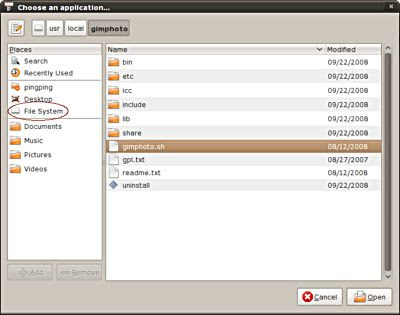
4. Select Gimphoto location: File System > usr > local > gimphoto > gimphoto.sh


5. Then will appear new Gimphoto program menu, Click [ Close ].


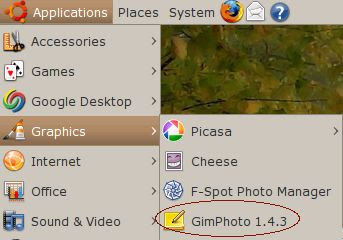
6. Access it from menu Applications > Graphics > Gimphoto.1.4.3


Just Taste ItDownload Now